Monday, November 21, 2011

Sunday, October 9, 2011
Grading..
Slowly making progress on grading InDesign Quiz/Billboard/Magazine.... shoot me an email if you want your grade so far.
Wednesday, October 5, 2011
Monday, October 3, 2011
Billboard Assignment (20 points)
Due: End of class Wednesday
Your task is to create, using typography, color and shapes, a mockup for a billboard promoting Des Moines.
Specifically, a billboard promoting travel to Des Moines.
Now, here's the catch: It's up to you what season of Des Moines to promote. Obviously, certain colors will work better for each season. Your choices are (of course):
Winter
Spring
Summer
Fall
Required elements:
Skyline created with pen tool
"Des Moines"
Tagline with name of the season (how you phrase it is up to you -- "Visit Des Moines this Fall!" "Des Moines -- The perfect summer getaway.")
Include three solid colors.
No gradients.
No more than two font families.
Optional:
Any use of shapes: squares, rectangles, circles, etc.
Document size: Width: 32" Height: 12"
To create a color swatch:
1. Open your swatches palette (Windows -> Color -> Swatches).
2. You'll see the pre-made swatches. To make your own, click on the icon that looks sort of like a post-it note ("New Swatch")
(note: if the new swatch button is grayed out, select black or another color first -- be aware that any object selected will have that color applied to it, so it's good to deselect everything by clicking on your pasteboard)
3. Double click on your new swatch
3. A pop-up box will appear. Name the swatch. Use the sliders to create your new color. You can also click on "Color Mode" to show pre-made swatches. For example, DIC Color Guide.
4. Click OK.
5. Now, you can drag the swatch onto objects to fill it with that swatch. Or select the object, then the swatch to apply it. You can also select text, then your swatch to apply the color to your text.
Grade:
10 points: C.R.A.P, balance, hierarchy, space. -- Billboards need a LOT of contrast to catch the eye -- so keep this in mind as you pick your colors, apply sizes, etc. Create dynamic space -- avoid centered alignment.
5 points: Use of color
5 points: Attention to detail (alignments, spacing, drop shadow, clean design)
Export as .JPG, save as LastnameBillboard.jpg and place in 59Langager folder.
Sunday, October 2, 2011
Schedule update
This week:
Monday Oct. 3:
1st brainstorm for our magazine
Billboard assignment
Finish magazine cover if needed
Wednesday Oct. 5:
-Might do a short photo ethics lecture-
InDesign Quiz
Finish billboard if needed
Next Week:
Monday Oct. 10:
Review for mid-term
Short assignment -- Business card
Wednesday Oct. 12:
Mid-term
Monday Oct 17: No class (fall break)
Wednesday Oct 19: Advertising assignment
InDesign Quiz Wednesday
Folks, we'll do the InDesign quiz on Wednesday this week........ I'll give you a simple set of instructions (Create a box, with this, this and this).
You should know how to....
Draw frames & Text boxes
Adjust strokes
Adjust fill color
Use rulers and guides (and change unit settings)
Insert images
Resize frames/images
Adjust tracking
Vertical and horizontal text alignment (hint: vertical alignment is under text frame options when you have the object selected)
Change font and font size
Create a linear gradient
You'll be able to use "Help"/Google/Lynda if you need to.
You should know how to....
Draw frames & Text boxes
Adjust strokes
Adjust fill color
Use rulers and guides (and change unit settings)
Insert images
Resize frames/images
Adjust tracking
Vertical and horizontal text alignment (hint: vertical alignment is under text frame options when you have the object selected)
Change font and font size
Create a linear gradient
You'll be able to use "Help"/Google/Lynda if you need to.
Wednesday, September 28, 2011


Tuesday, September 27, 2011
Magazine Assignment
25 points • Due: Wednesday 9/28 end of class
This assignment is made up of two basic components:
• Cover photo, and
• Magazine text, including the masthead (magazine name) and descriptions of stories inside (cover lines -- see bottom of assignment for cover line ideas)
First step: Edit your photo in Photoshop/Camera Raw. What to fix:
• Color balance (make it look natural!)
• Exposure/brightness
• Contrast
• Saturation/vibrance
• Sharpness (Remember "Unsharpen Mask" in Photoshop, Clarity & Sharpening in Camera Raw)
• Save full size resolution before bringing into InDesign
Tools you'll use in InDesign will include (but not limited to):
• Image placement (make sure it "bleeds" over the edges a little -- and when you resize, be SURE to keep the proper aspect ratio -- check with Andy if needed)
• Text frames
• Drop shadow
• Kerning and leading adjustments
• Creating swatches
As you create your magazine cover, keep in mind three key ideas:
• Creating a bold, tight, strong, eye-catching masthead with appropriate font
• Creating a collection of interesting, well-spaced cutlines
• Creating an overall design that will help sell the magazine
Document Setup:
Number of Pages: 1
Page Size: Letter
Columns: 1
Bleed: 1p6 (Top, Bottom, Left, Right)
When you create your Drop Shadow (with a new Object Style), try these settings (you can play around of course but try starting here):
Distance: 0p2
Angle: 135 degrees
Size: 0p2
Use this drop shadow to add contrast and legibility to your type.
To adjust Kerning (distance between letters): put the cursor between two letters and hold Option and either the left arrow or right arrow. (You can also choose the "Character" sidebar menu to see the numerical values).
Fonts: For the most part, you'll probably want a sans serif font, with a mix of thick and thin weights. A good serif / slab serif font might be appropriate for contrast, though. You can also mix in italics, sometimes just a single word if you want.
Graded:
CRAP (good placement of cover lines, good repetition and contrast): 10 points
Typography (appropriate font families, good leading/kerning): 10 points
Color (use colors that compliment your photo and stand out): 5 points
Export as LastnameMagazine.jpg and copy to 59Langager folder.
COVER LINE IDEAS - trying to sell the content inside the magazine
"Tips" or secrets relating to your subject
Interview with (someone)
Photos of (something)
Reviews of (something)
Investigative story
"Survival guide"
Top 10 (or 25 or 100) (something)
10 Ways to (something)
10 Reasons we love (something)
COVER LINE IDEAS - trying to sell the content inside the magazine
"Tips" or secrets relating to your subject
Interview with (someone)
Photos of (something)
Reviews of (something)
Investigative story
"Survival guide"
Top 10 (or 25 or 100) (something)
10 Ways to (something)
10 Reasons we love (something)
Sunday, September 25, 2011

Hi folks,
Monday we'll do a photography lecture and practice a little more with Photoshop with some photos I will provide.
Wednesday we'll work on a magazine cover -- each person will create their own, so you will need to bring a photo that you've taken.
The magazine itself can be something you come up with -- it can have to do with Drake or just something you are interested in.
What I would recommend is having a person on the cover -- perhaps a closeup or a waist-up shot. Have them doing something related to what your magazine is about. Look for "good light" when you shoot it, and avoid using the camera flash inside. Even if you don't have the best camera, if you find nice, bright light (outside!), usually the photo will look pretty good. (also make sure your camera is set to the largest file size possible)
Leave some room for the magazine title at the top -- and shoot multiple versions so you have some choices when you go to create the cover. I'd say shoot 10 or more and it will give you some good options.
We'll edit the photos in Photoshop and then bring them into InDesign to add the type.
Andy
Tuesday, September 20, 2011
Movie poster for 9-21
Poster Assignment
25 points • Due: Start of class Monday 9-26
We'll practice these principles of design:
• Contrasting, dynamic typography
• Harmony of between your elements of design
• Strong visuals through alignment and color selection
• Reinforcing the power and implications of proximity of and between elements
For this assignment you'll create a movie poster for The Twilight Sage: New Moon
1. Sketch the design out on a sheet of paper first. Use multiple drafts if needed. Then, recreate your design in InDesign on a U.S. Paper sized document (8.5" by 11").
2. You may work with a partner. You need to take turns "driving" in InDesign, though.
3. When you're all done, export as a .JPG and save as [LastnameLastnameNewMoon.jpg] and save in the class folder as usual.
Elements you'll need to include (be as creative as you want with these):
• A moon
• Title: The Twilight Saga: New Moon
• Tagline: The saga continues…
• It stars Kristen Stewart and Robert Pattinson
• That it is based on the novel by Stephanie Meyer and directed by Chris Weitz
• It opens 11-20-09 (yes we'll pretend it's not out yet)
• You can use other shapes (circles, squares, lines, etc.) if you want, but no photos.
• Use three colors besides black and white. (Gradient counts as two colors)
• Use at least one gradient
• Adjust the kerning and horizontal/vertical scale of your text as needed to make it "tight" and clean.
To create a circle:
1. Click and hold the mouse button down on the "Rectangle Tool" on the left side toolbar
2. Select Ellipse
3. Click and drag to make an ellipse. Hold the shift key down to constrain it to a circle.
4. Resize it by clicking and dragging on an corner of your object's blue box.
5. To fill your shape in with a color, make sure your object is selected (it will have a blue box around it) and click on a swatch.
To create a gradient/gradient swatch:
1. Open your swatches palette.
2. Create your two colors that will make up each end of the gradient.
3. Click on the Gradient pop-up window (on the right side, near Colors and Effects)
4. You'll see two small boxes at either end of your gradient slider. Simply drag a swatch into one of these boxes. If you miss and create a third box, simply click and drag the new box out of the gradient pop-up to delete it.
5. In the top left, you'll see a larger box with sort of a preview of what your gradient looks like. Drag this box to your swatches pop-up window to create a gradient swatch. Now you have it saved (or right click and select Add to Swatches). You can double click on your new gradient swatch to edit it.
6. To see your gradient swatches, go to your swatch pop-up window and click the third small icon from the left on the bottom (it looks like a gradient).
Note: Whenever you create a new swatch or gradient, be aware if you have any object selected. It will create a new swatch or gradient based on whatever you have selected.
** Also note the angle option in the gradient pop-up. Don't just stick to the default!
Grading:
C.R.A.P., balance, heirarchy: 10 points
Use of harmonious colors: 10
Use of typography, fonts, leading, kerning: 5 points
Wednesday, September 14, 2011
Photo Story Photoshop Assignment

Photo Story Assignment
20 points • Due before start of class Monday 9-19
We're going to first edit the images in Photoshop, then put them in a simple, almost comic-book style layout to tell our visual story. I'm pretty open to how you want to lay them out in InDesign as long as it looks "clean" and can easily be followed. (Maybe you want to put a stroke around each photo or round the corners? Let me know and I can show you how.)
PHOTOSHOP:
Step 1: Edit in Photoshop
We'll be concerned with (in proper order):
Exposure
Contrast
Contrast
Color
Saturation
Cropping
Sharpening (Optional)
The EASY way to do contrast is
Image -> Auto Tone
Image -> Auto Contrast
The EASY way to do color is
Image -> Auto Color
The more manual way is through the "Adjustment" window. Here is where we will adjust the saturation. But instead of the actual saturation adjustment, let's do vibrance, which is sort of "smart saturation."
Cropping: Note about cropping... you might not want to crop much in Photoshop. We'll be able to crop in InDesign using the frame tool. It's good to have extra image to work with. But if you know you want to leave something out, go ahead and crop.
The crop tool is on the tool bar, the fifth icon down. Select the tool, then click and drag to crop. Hit "Enter" after you've made the crop selection to apply the crop. Note that if you need to undo something you'll need to go to the "History" window (Window -> History).
The crop tool is on the tool bar, the fifth icon down. Select the tool, then click and drag to crop. Hit "Enter" after you've made the crop selection to apply the crop. Note that if you need to undo something you'll need to go to the "History" window (Window -> History).
Sharpening: Some images need to be sharpened to make them "pop." Make sure the background layer is selected, then go Filter -> Sharpen -> Unsharpen Mask. Play with the "amount" slider to increase the sharpening.
FYI, the "radius" slider changes how large the sharpening effect is, and the "Threshold" slider changes what lines are sharpened (the lower the Threshold, the more lines are sharpened, the higher the Threshold, fewer lines are sharpened).
Finally, saving so we can bring them into InDesign. We'll save these as a JPEG.
File -> Save As....
Under the drop-down menu, change from Photoshop Document to JPEG.
I recommend saving all your edited images in a separate folder so you can find them easily when you move on to InDesign.
INDESIGN:
We've brought images into InDesign before. Same deal here.
We'll just create a simple layout on a 20" by 20" size page. When you create the document, you can type 20" into the box for the height and width. InDesign will convert it to picas. The orientation can either be portrait (default) or landscape (sideways).
With your layout of your story images, you'll want to make sure the reader knows where to start and where to go next. Left to right, then down is the natural progression.
Make sure you have more space between photos that aren't next. For example, more space between row 1 and row 2 than photo 1 and photo 2.
To help keep your spacing between photos on a row consistent, you can create a small rectangular guide and move it around, making sure each photo is the same distance from the photo next to it with this little guide box. Just remember to delete it or hide it before you export.
To help keep your spacing between photos on a row consistent, you can create a small rectangular guide and move it around, making sure each photo is the same distance from the photo next to it with this little guide box. Just remember to delete it or hide it before you export.
If you want to, you can add small arrows to help guide the reader. You can vary the size of the images as you go along, to emphasize some over others.
Lay the images out in a clean fashion: a consistent amount of space between each one (and each row), keeping the right proportions of each photo (remember to resize with COMMAND+SHIFT).
SAVING
Export as a .JPEG and save in our class turn in folder. Name the file LastnameSTORY.jpeg. Remember, due before class next Monday.
GRADING:
5 points: Photo editing (good color, contrast, exposure)
5 points: Design layout
5 points: Pleasing alignment
5 points: Attention to detail
SAVING
Export as a .JPEG and save in our class turn in folder. Name the file LastnameSTORY.jpeg. Remember, due before class next Monday.
GRADING:
5 points: Photo editing (good color, contrast, exposure)
5 points: Design layout
5 points: Pleasing alignment
5 points: Attention to detail
Monday, September 12, 2011
Photo Story Assignment
For Wednesday 9-14:
This assignment is to get you to think about how to tell a story purely through images. How can you convey information and narration without the use of sound or text?
Tell a short story through 12 images. (12 finished images -- you can take more than that as you work on it)
Brainstorm something fun with a friend. It could be an original story or a re-telling of a classic fairy tale.
The story should have a beginning, middle and end. And any good story has conflict. Come up with a protagonist and antagonist. (The antagonist doesn't even have to be a person).
Be sure to use a mixture of wide shots, medium shots, and close-ups. Try to get a variety of angles so each shot is much different than the previous. Put yourself in the shoes of a movie director, only with a camera. You might need to "direct" your actors.
Remember that if you don't have enough light, your photos might come out blurry. You can fix a lot of things in Photoshop, but not a blurry or out of focus photo.
You can help out a classmate but you should have your own story -- your own photos -- to work on when we get to class on Thursday.
You'll be graded on.....
Creativity
Variety of angles and distances
Making sure shots aren't blurry
Does it make sense?
Are the images visually strong? (Strong central focus of action, getting close when appropriate, leaving things out of the frame when they shouldn't be there)
Wednesday, we'll edit them in Photoshop and put them together in InDesign (almost like a comic book) to tell your story on a page.
Tuesday, September 6, 2011
Assignment for Wednesday 9/7
The purpose of this assignment is to get you thinking about the "voice" of different fonts, and to let you become familiar with different font families. It will also help you develop your own typographic "style."
Design a tabloid size page (11"x17") filled with 6-12 great movie quotes.
The quotes will be styled in appropriate fonts.
Make one quote the largest (remember "dominance").
You can use multiple sizes for some words within each quote for emphasis if you want.
It's easier to use multiple text boxes when using multiple sizes of type, even if it's all one quote (you can move words around more easily).
Have fun with the type -- but keep it clean and simple.
Keep it to two font families per quote (plus bold/italics).
Stick to black and white. (You can make the background black and text white if you want)
Plan accordingly -- make the type bigger than you'd think to help fill the page.
Remember to include the character name.
Find AFI's top 100 quotes here.
Find 400 quotes here (PDF).
Due end of class
InDesign Document: height: 11" width 17" (TABLOID)
Export as: LastnameQUOTES.JPG (remember to use export... renaming your .indd file to .jpg is not enough)
15 points:
Effective use of font families: 5 points
Design of quote placement, size, italics, bold: 5 points
Overall gestalt: 5 points
Design a tabloid size page (11"x17") filled with 6-12 great movie quotes.
The quotes will be styled in appropriate fonts.
Make one quote the largest (remember "dominance").
You can use multiple sizes for some words within each quote for emphasis if you want.
It's easier to use multiple text boxes when using multiple sizes of type, even if it's all one quote (you can move words around more easily).
Have fun with the type -- but keep it clean and simple.
Keep it to two font families per quote (plus bold/italics).
Stick to black and white. (You can make the background black and text white if you want)
Plan accordingly -- make the type bigger than you'd think to help fill the page.
Remember to include the character name.
Find AFI's top 100 quotes here.
Find 400 quotes here (PDF).
Due end of class
InDesign Document: height: 11" width 17" (TABLOID)
Export as: LastnameQUOTES.JPG (remember to use export... renaming your .indd file to .jpg is not enough)
15 points:
Effective use of font families: 5 points
Design of quote placement, size, italics, bold: 5 points
Overall gestalt: 5 points
Saturday, August 27, 2011
Example of what we'll be doing Monday in InDesign....

Use this website to find one good ad and one poorly designed ad. (Click on an ad to enlarge it and then drag it to the desktop to save)
When you are done, Export each as a JPEG, name LastnameLastnameGOOD / LastnameLastnameBAD and saved to our turn-in folder.

Use this website to find one good ad and one poorly designed ad. (Click on an ad to enlarge it and then drag it to the desktop to save)
When you are done, Export each as a JPEG, name LastnameLastnameGOOD / LastnameLastnameBAD and saved to our turn-in folder.
Wednesday, August 24, 2011
Today's Lecture! Also.. short quiz Monday on Williams, Ch. 1-5 and lecture.
EDIT: and a couple questions from Lynda.com.
EDIT: and a couple questions from Lynda.com.
Lynda.com update
Hey folks... if you are having trouble getting into Lynda.com from on campus using my links on the side, here is what you do..
Sign into BlueView
Click on Campus Life
Click on Lynda.com on the right side
Come back to this blog and click on the Lynda links
It should work fine. If not, let met know.
Remember, online lessons 1 & 2 for Monday.
Andy
Sign into BlueView
Click on Campus Life
Click on Lynda.com on the right side
Come back to this blog and click on the Lynda links
It should work fine. If not, let met know.
Remember, online lessons 1 & 2 for Monday.
Andy
Monday, August 22, 2011
Lynda.com
Hey folks -- good first class. Sorry about the troubles with the Lynda.com redesign! I found the relevant pages and made links on the right side. All you should have to do is sign in with your Drake account and you should be good to go. Let me know if you have any trouble with it.
Williams ch. 1-5 tomorrow and bring a magazine!
Also if you want update on Facebook, here is our class page.
-Andy
Williams ch. 1-5 tomorrow and bring a magazine!
Also if you want update on Facebook, here is our class page.
-Andy
Sunday, August 21, 2011
Survey!
Hi folks! Please take this survey before Wednesday! And please write your name on the last question so I know where you stand. (It might be best to take it after I go over everything on Monday so you'll have a better idea of what you might be most concerned about/want to do in the class.)
Welcome!
Welcome Fall 2011 JMC 59 students! This is the first post of the Fall semester.
We're going to go paperless for this class, which means this website will be our main resource for handouts, assignments, and news.
Monday we'll cover the syllabus, introductions, and I'll do a short lecture on design -- and bad design.
For Wednesday, please bring a magazine to class. You don't need to go out and buy one -- see if you can borrow one from a neighbor if you don't have one handy. We'll critique an ad from it.
Lastly, here is a link to the syllabus.
-Andy
We're going to go paperless for this class, which means this website will be our main resource for handouts, assignments, and news.
Monday we'll cover the syllabus, introductions, and I'll do a short lecture on design -- and bad design.
For Wednesday, please bring a magazine to class. You don't need to go out and buy one -- see if you can borrow one from a neighbor if you don't have one handy. We'll critique an ad from it.
Lastly, here is a link to the syllabus.
-Andy
Thursday, May 5, 2011
Thursday, April 28, 2011
Magazine!
If you want to view the finished magazine online, click here!
Click here to download the full size version.
I ordered a sample copy.. it's supposed to take 1-2 weeks so I'm not sure if everyone will be able to see a hard copy before you have a chance to order one. But once I get it, you'll be able to order a hard copy for $7.20.
Click here to download the full size version.
I ordered a sample copy.. it's supposed to take 1-2 weeks so I'm not sure if everyone will be able to see a hard copy before you have a chance to order one. But once I get it, you'll be able to order a hard copy for $7.20.
Tuesday, April 12, 2011

Newsletter design tips
Example 1
Example 2
• One-pica measurements are your friend (below the flag, between stories -- 1.5 or 2 pica spacing works too in some places)
• No bylines.. keep space between headline and story text consistent (1-1.5 pica)
• Think about boxes, strokes, drop shadows, different colored headlines
• Consider a 4-color scheme
• Wrap text around art with a non-straight edge (See example 1)
• Combine vertical and horizontal stories
Don't do this!

Example 2
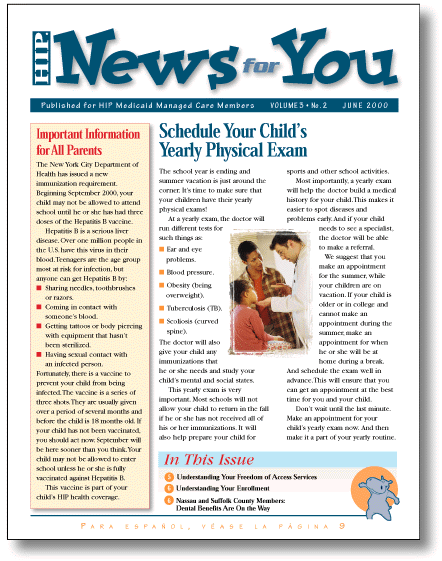
• One-pica measurements are your friend (below the flag, between stories -- 1.5 or 2 pica spacing works too in some places)
• No bylines.. keep space between headline and story text consistent (1-1.5 pica)
• Think about boxes, strokes, drop shadows, different colored headlines
• Consider a 4-color scheme
• Wrap text around art with a non-straight edge (See example 1)
• Combine vertical and horizontal stories
Don't do this!

Thursday, March 31, 2011
Couple quick things..
Please bring your newspaper design book to class tonight for reference. We'll finish the first newspaper page and get started on the next one.
Also, keep in mind you should have your "How To" photos (6-8 of them) for the photo spread done and ready to go on Tuesday April 19. Aim for good-looking photos -- this includes avoiding using the built-in camera flash inside and finding good (or at least "clean") backgrounds for your setups. Let me know if you have any questions on this one.
Finally, Tuesday April 5 will be an "optional" class -- pretty much just a work day for the 2nd newspaper assignment. If you'd rather use outside of class time to get it done, that is fine. We'll have probably at least an hour on Thursday to finish it up, I'm thinking of something fun we could do that night. If you have an idea let me know! Otherwise perhaps a video.
Please bring your newspaper design book to class tonight for reference. We'll finish the first newspaper page and get started on the next one.
Also, keep in mind you should have your "How To" photos (6-8 of them) for the photo spread done and ready to go on Tuesday April 19. Aim for good-looking photos -- this includes avoiding using the built-in camera flash inside and finding good (or at least "clean") backgrounds for your setups. Let me know if you have any questions on this one.
Finally, Tuesday April 5 will be an "optional" class -- pretty much just a work day for the 2nd newspaper assignment. If you'd rather use outside of class time to get it done, that is fine. We'll have probably at least an hour on Thursday to finish it up, I'm thinking of something fun we could do that night. If you have an idea let me know! Otherwise perhaps a video.
Friday, March 25, 2011
Sunday, March 20, 2011
Anyone interested in copyright? Well, "fair use" is a term for using someone else's work in a way that is educational, partial, or changed enough that you can legally use it without the original author's permission. Here's a recent case where fair use was denied because the photographer barely changed the original photos.
Wednesday, March 2, 2011
Start thinking about...
...the magazine spread assignment.
On April 19 (yes it's still a ways off), you should bring to class:
6-8 photos for a two page magazine spread
The magazine spread's theme is "How To." How to… cook a dish. Make a model car. Make a piece of jewelry. Groom a dog. Apply make-up. Play tennis.
The specifics are up to you. But you'll need 6-8 original photos, taken by you, to include in the spread.
You'll also need a short (200 word or so) introduction paragraph that leads into the step-by-step instructions. The instructions themselves can be pretty short if you want. One or two lines per photo perhaps. Longer if you want.
Once the photos are done, you'll edit them in Photoshop as we've learned how to do and work with them (and your text) in InDesign.
So, start thinking about what you'll want to do.
Here are some examples.. they might not be 100% what we're doing but you get the idea:
Example 1
Example 2
Example 3
On April 19 (yes it's still a ways off), you should bring to class:
6-8 photos for a two page magazine spread
The magazine spread's theme is "How To." How to… cook a dish. Make a model car. Make a piece of jewelry. Groom a dog. Apply make-up. Play tennis.
The specifics are up to you. But you'll need 6-8 original photos, taken by you, to include in the spread.
You'll also need a short (200 word or so) introduction paragraph that leads into the step-by-step instructions. The instructions themselves can be pretty short if you want. One or two lines per photo perhaps. Longer if you want.
Once the photos are done, you'll edit them in Photoshop as we've learned how to do and work with them (and your text) in InDesign.
So, start thinking about what you'll want to do.
Here are some examples.. they might not be 100% what we're doing but you get the idea:
Example 1
Example 2

Example 3

MId term study guide
The mid-term (March 10th) will cover assigned readings from Williams and Harrower, lecture, and NewsU.org material.
Harrower:
Chapter 1
p. 216-224
p. 110-126
Williams:
Chapters 1-7, 9-11
p. 109-113
Questions from the exam may include (but are not limited to) the following topics:
Photography
Megapixels
What does pixel stand for?
Depth of field
Aperture
Shutter
Fill flash
Resolution
3 main types of photojournalism photos (informational, passive, active)
Cropping
Portrait mode
Color
Using the color wheel (complementary, triads, etc.)
RGB color
CMYK color
Cool colors vs warm colors (which recedes into the background?)
Spot color vs Process
Hues, shades, tints, tone
Design
C.R.A.P.
Balance
Hierarchy
Space
Alignment and readability
Grids
Gestalt
Typography
Types of display type
Maximum number of font families in a design?
Kerning
Leading
Tracking
Golden rule of column width (39 characters)
Widow
Ascender
Baseline
Descender
Serifs
X-Height
Factors affecting readability
Points, picas, inches
Harrower:
Chapter 1
p. 216-224
p. 110-126
Williams:
Chapters 1-7, 9-11
p. 109-113
Questions from the exam may include (but are not limited to) the following topics:
Photography
Megapixels
What does pixel stand for?
Depth of field
Aperture
Shutter
Fill flash
Resolution
3 main types of photojournalism photos (informational, passive, active)
Cropping
Portrait mode
Color
Using the color wheel (complementary, triads, etc.)
RGB color
CMYK color
Cool colors vs warm colors (which recedes into the background?)
Spot color vs Process
Hues, shades, tints, tone
Design
C.R.A.P.
Balance
Hierarchy
Space
Alignment and readability
Grids
Gestalt
Typography
Types of display type
Maximum number of font families in a design?
Kerning
Leading
Tracking
Golden rule of column width (39 characters)
Widow
Ascender
Baseline
Descender
Serifs
X-Height
Factors affecting readability
Points, picas, inches
Wednesday, February 23, 2011
Slides
Slides for Thursday 2/24 lecture.. they're a little too big for Google Docs but you should be able to download them here.
Tuesday, February 22, 2011
InDesign Quiz Thursday
After the photography lecture on Thursday this week, we'll have a short InDesign quiz. You'll actually use InDesign for the quiz.
You should know how to....
Draw frames & Text boxes
Adjust strokes
Adjust fill color
Use rulers and guides (and change unit settings)
Insert images
Resize frames/images
Adjust tracking
Vertical and horizontal text alignment
Change font and font size
Create a linear gradient
You'll be able to use Google/Lynda if you need to.
You should know how to....
Draw frames & Text boxes
Adjust strokes
Adjust fill color
Use rulers and guides (and change unit settings)
Insert images
Resize frames/images
Adjust tracking
Vertical and horizontal text alignment
Change font and font size
Create a linear gradient
You'll be able to use Google/Lynda if you need to.
Thursday, February 17, 2011
Magazine Cover photo tips
For Tuesday 2-22: Bring a photo you've taken for the magazine cover.
Tips:
• Don't use your flash indoors -- it creates flat, unflattering lighting. If it's daytime, go outside or find a window with sunlight coming in.
• If you are outside (daytime), force your flash to fire. It will fill in unflattering shadows, but light from the sun will prevent the overall lighting from being too flat
• Shoot in "portrait" mode, holding the camera vertically. Also, your camera might literally have a portrait mode on the dial (it looks like a person). Use this setting.
• Leave enough room at the top of the composition for your magazine name. Shoot several different shots and choose the best one later. Professionals will easily take hundreds of photos with different framing, etc.
• If shooting a person, have them move away from any background wall. It will make the background out of focus and make your person more prominent.
• Within your composition, try not to have too many colors or distracting designs.
Tips:
• Don't use your flash indoors -- it creates flat, unflattering lighting. If it's daytime, go outside or find a window with sunlight coming in.
• If you are outside (daytime), force your flash to fire. It will fill in unflattering shadows, but light from the sun will prevent the overall lighting from being too flat
• Shoot in "portrait" mode, holding the camera vertically. Also, your camera might literally have a portrait mode on the dial (it looks like a person). Use this setting.
• Leave enough room at the top of the composition for your magazine name. Shoot several different shots and choose the best one later. Professionals will easily take hundreds of photos with different framing, etc.
• If shooting a person, have them move away from any background wall. It will make the background out of focus and make your person more prominent.
• Within your composition, try not to have too many colors or distracting designs.
Thursday, February 10, 2011
Tuesday, February 8, 2011
NewsU.org instructions
Due Thursday 2-10!
1. Go to NewsU
2. Create an account (it will send you an email, click on the email to sign back in)
3. Click on courses, search for Typography for News Design
4. Enroll (it's free)
5. Do the course -- it's a bit nonlinear, as I said in class.
6. Email course report to andylangager@gmail.com
7. Done!
Remember your password, we'll do a couple more of these this semester.
1. Go to NewsU
2. Create an account (it will send you an email, click on the email to sign back in)
3. Click on courses, search for Typography for News Design
4. Enroll (it's free)
5. Do the course -- it's a bit nonlinear, as I said in class.
6. Email course report to andylangager@gmail.com
7. Done!
Remember your password, we'll do a couple more of these this semester.
Tuesday, February 1, 2011
Thursday, January 27, 2011
Sunday, January 23, 2011
Lynda.com instructions
1. Sign into BlueView
2. Click on the "Campus Life" tab
3. Click on the Lynda.com link on the right hand column
That's it!
2. Click on the "Campus Life" tab
3. Click on the Lynda.com link on the right hand column
That's it!
Monday, January 17, 2011
Spring 2011 JMC 59 Schedule
WEEK 1
January 18 - Tuesday
Orientation, syllabus, check your login, self-assessment
For January 20:
Read Williams, Chapters 1-5,
Bring magazine to class
January 20 - Thursday
Lecture: Contrast, Repetition, Alignment, Proximity
in-Class: Find C.R.A.P. and submit in Word
For January 25: Online Lesson 1 (see handout)
_____________________________________
WEEK 2
January 25 - Tuesday
Quiz #1 on Chapters 1-5
Work in pairs: Find CRAP, scan into InDesign with analysis
For January 27:
Harrower: Ch. 1
Online Lesson 2
January January 27
Lecture: Space and Dominance, Hierarchy, Balance
Brief demo of InDesign
Start Reverse Layout assignment
For February 1:
Online Lesson 3
Williams: p. 109-113, Chapter 9-11
_____________________________________
WEEK 3
February 1 - Tuesday
Lecture: Intro to Typography
Finish Reverse layouts
For February 3
Williams: Ch. 6
Quiz: Principles of Design and space
February 3 - Thursday
Quiz
Poster I assignment
For February 8: Online lesson 4
_____________________________________
WEEK 4
February 8 - Tuesday
Finish poster
Receive and work on Business card assignment
For February 10
NewsU.Org, "Typography for News Design"
Email a course report to andylangager@gmail.com
February 10 - Thursday
Finish Business Card assignment, NewsU if needed
Begin Poster II assignment
For February 15:
Williams, Chapter 7
Harrower p. 216-224
Online lesson 5
_____________________________________
WEEK 5
February 15 - Tuesday
Lab work -- continue Poster II assignment, finish NewsU.Org if needed
For February 17
Bring photo for your magazine cover
February 17 - Thursday
Lecture: Color
Assign Magazine Cover
For February 22:
NewsU.Org, "Color in News Design"
Email a course report to andylangager@gmail.com
Online lesson 6
Heads-up for February 24:
In-class Indesign Quiz (open note, Lynda.com, Adobe Help)
_____________________________________
WEEK 6
February 22 - Tuesday
In-class photo scavenger hunt
Finish Magazine Cover if needed
For February 24:
Harrower p. 110-126
NewsU.org "Language of the Image"
Email a course report to andylangager@gmail.com
February 24 - Thursday
Lecture: Photography
In-Class InDesign quiz (Open note, Lynda.com, Adobe Help)
For March 1: Online lesson 7
_____________________________________
WEEK 7
March 1- Tuesday
Photo Editing Assignment 1
For March 3: Online lesson 8
March 3 - Thursday
Photo Ethics Lecture
In-class Photoshop assignment
For March 8: Online lesson 9
_____________________________________
WEEK 8
March 8 - Tuesday
Finish in-class Photoshop,
Exam Review
For March 10
Mid-Term: Text readings, NewsU Content, Page Design, Space, Type, Color, InDesign, Photography and ethics, Photoshop, Posters, Business cards
March 10 - Thursday (mid-point)
Midterm Exam
For March 22:
Online lesson 10
Advertising Design
Williams p.135-138
Harrower: Ch.7 to p. 216
_____________________________________
March 14 - 18 • No class; Spring break!
_____________________________________
WEEK 9
March 22 - Tuesday
Exam returned
Advertising lecture & assignment
For March 24
PR/Flyer Design
Williams p.119-122
Harrower: Ch. 6
March 24 - Thursday
PR/Flyer lecture & assignment
_____________________________________
WEEK 10
March 29 - Tuesday
Finish flyer
For March 31
Harrower: Ch. 3 & 5
March 31 - Thursday
Newspaper lecture & in-class assignment
_____________________________________
WEEK 11
April 5 - Tuesday
Newspaper front page assignment
April 7 - Thursday
Newspaper lab
For April 12
Williams: p. 123-126
Harrower Ch. 2
_____________________________________
WEEK 12
April 12 - Tuesday
PR/Newsletter lecture & assignment
April 14 - Thursday
PR/Newsletter lecture, assignment
For April 19
Harrower: Ch. 4
_____________________________________
WEEK 13
April 19 - Tuesday
Magazine lecture & assignment
April 21 - Thursday
Magazine lab
_____________________________________
WEEK 14
April 26 - Tuesday
Finish magazine spread, hand in, Final brochure assignment
April 28 - Thursday
Work day
_____________________________________
WEEK 15
May 3 - Tuesday
Work day
May 5- Thursday
Work day
_____________________________________
May 10 -Tuesday • Final Exam period (6pm - 7:50pm)
May 13 - Semester ends
Subscribe to:
Comments (Atom)